How to install the Pak Club Android APK
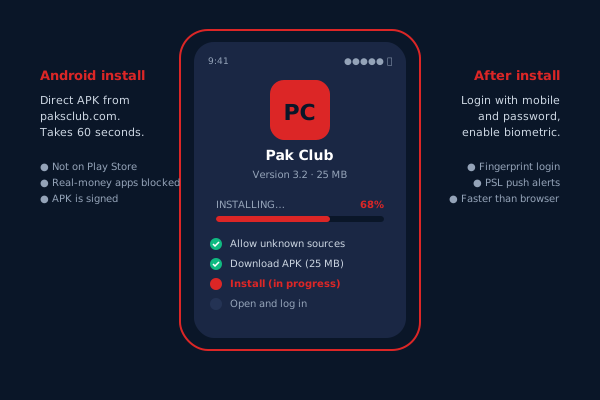
Pak Club is not on the Google Play Store — Google blanket-bans real-money gaming apps in many regions, so we ship the APK directly. The install takes 60 seconds and you only do it once.
Step 1 — allow installs from your browser
Open Settings on your phone. Search for "install unknown apps" or scroll to Security → Install unknown apps. Pick whichever browser you use (usually Chrome) and toggle it on. If you are on Samsung One UI, the toggle is under Biometrics and Security. The exact path varies by phone — the search bar at the top of Settings usually finds the right screen in one tap.
Step 2 — download the APK
Open Chrome, type paksclub.com, scroll to the Android download button on this page or the homepage, and tap. The 25 MB file lands in your Downloads folder. Chrome flashes a "this type of file can harm your device" warning — that is generic to every APK ever made and Chrome shows it for the Disney Plus APK too. Tap "Download anyway."
Step 3 — install it
Once the download is done, swipe the notification or open Files → Downloads and tap the APK. The Android installer asks for confirmation. Tap "Install" and wait 10–20 seconds. When it finishes you can open the app straight from the installer screen, or find it in your app drawer next to the other apps.
Step 4 — log in (or sign up)
Tap Pak Club. Log in with your existing details, or register from inside the app — it is the same flow. After your first successful login, switch on biometric login from Settings → Security so you never have to type the password again.
If your antivirus blocks the install, that is the antivirus being overly cautious about side-loaded APKs. Whitelist the file or pause the antivirus during install. The APK is signed by Pak Club; you can verify the signature in any APK-info app.